Create a “Launching Soon” Page for your blog Use Kadance

I’m going to walk you through a simple way to set up a professional a launching Soon Page with Kadence for your WordPress blog, and I’ll show you exactly how to do it without installing extra plugins. If you’re launching a new blog and want to protect your work-in-progress content while building momentum, this method is perfect.
Why You Need a Launching Soon Page
When you’re building a new blog, you don’t want visitors stumbling into half-finished posts or an incomplete site design. A launching soon page keeps your site looking polished while you’re behind the scenes creating quality content. Plus, you can start collecting email subscribers before you officially launch.
Step 1: Design Your Page in Canva
Start by creating a visually appealing launching soon template in Canva, a free design tool. Canva’s templates are beginner-friendly and take just 15 minutes to customize with your brand colors and logo. Once you’re happy with the design, download it as a PNG or JPG file. If you prefer a short video , you can create the video using a canva template and add it to your “launching soon page” as well.
Step 2: Create Your “Launching Soon” Page in WordPress
In your WordPress dashboard:
- Go to Pages → Add New
- Name it “Launching Soon”
- Click on add a image or video. Upload your Canva image or video. That’s it! Your new page is created.
Step 3: Set Launching Soon as Your Homepage
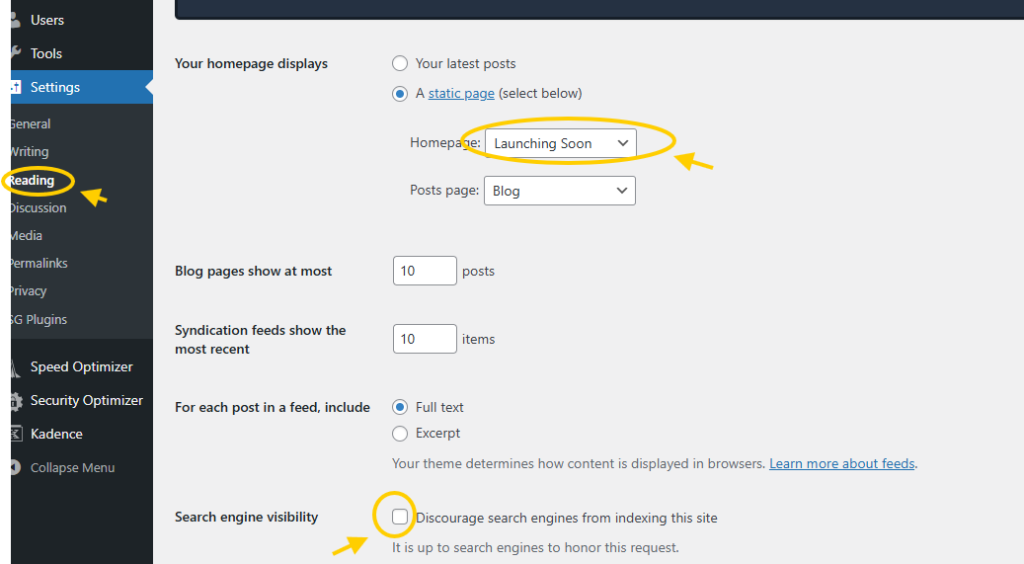
To make this page the first thing visitors see:
- Go to Settings → Reading
- Select “A static page” under “Your homepage displays”
- Choose your “Launching Soon” page as the homepage
- Click Save
Now, every visitor who types your URL will see only your launching soon page—not your draft posts or incomplete site.
Step 4: Hide the Header and Navigation
Using Kadence, you can disable the header and menu on just this one page:
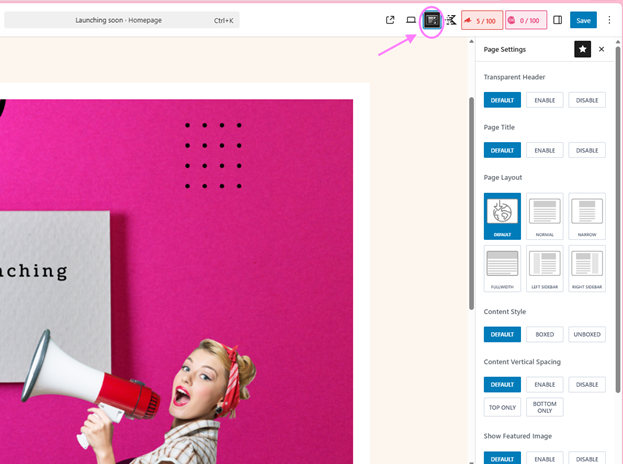
- Go to Pages → All Pages → Launching Soon → Edit
- In the right sidebar, open Kadence Page Settings (look for “Kadence” or “Page Layout”)
- Find Header Settings and set it to “Disable” or “Hide Header”
- Update the page
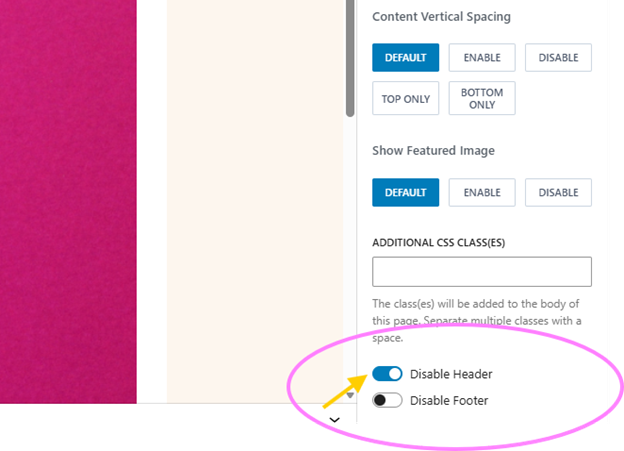
This removes your logo, menu, and navigation—keeping the page clean and focused.
Step 5: Protect Your Draft Content
While you’re building your site, set all your draft posts and pages to Private:
- When editing a post, click the Visibility dropdown
- Select “Private”
- Save
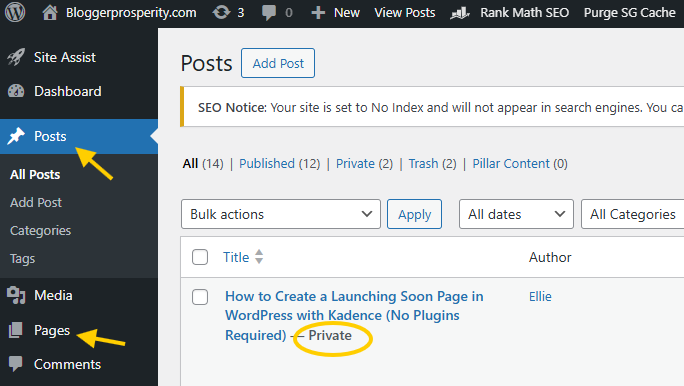
This ensures only logged-in admins can see your work-in-progress content.
Key Takeaways
- Use Canva to design a professional template in minutes
- Set your launching soon page as your static homepage to protect unfinished content
- Hide the header on just that page using Kadence’s built-in settings
- Collect emails early by adding a signup form
- Keep draft content private while you build
- No plugins needed—WordPress and Kadence handle everything natively
FAQ
Q: Can visitors access my draft posts?
No. By setting draft posts to “Private” and making your launching soon page the homepage, visitors only see your launching soon page. Your work-in-progress stays hidden.
Q: Do I need to buy a premium Kadence theme?
The free Kadence theme works fine for hiding headers. Kadence Theme Pro adds extra features like built-in countdown timers and pre-made coming soon templates, but it’s optional.
Q: How do I know when to launch my actual site?
Once your homepage is ready and you have at least 5–10 solid posts published, you can remove the launching soon page as your homepage. Go back to Settings → Reading and select “Your latest posts” instead.
Q: What if I want a countdown timer?
You can add one using a simple WordPress countdown timer plugin or include a deadline directly in your Canva design. Kadence Theme Pro includes built-in countdown functionality.
Q: Can I track how many people visit my launching soon page?
Yes. Install Google Analytics on your WordPress site using MonsterInsights (free version available) to see visitor data before your official launch.
Before creating your coming soon page, review the complete pre-launch checklist to make sure everything is aligned for a smooth launch.
Good luck with your launch!