How to Add Pages to the Footer in WordPress
Here’s the clean way to do it on WordPress (works great with Kadence too). You’ll do two things: make sure the pages exist, then add them to a footer menu, or drop them into the footer widgets.
Step 1: Confirm the pages exist
- Go to Pages → All Pages
- Confirm you have:
- Disclosure
- Editorial Process
- Privacy Policy
- If any are missing: Pages → Add New, publish them.
Option A: Add them via a Footer Menu (best and simplest)
This is the most “standard” method and usually the easiest to manage later.
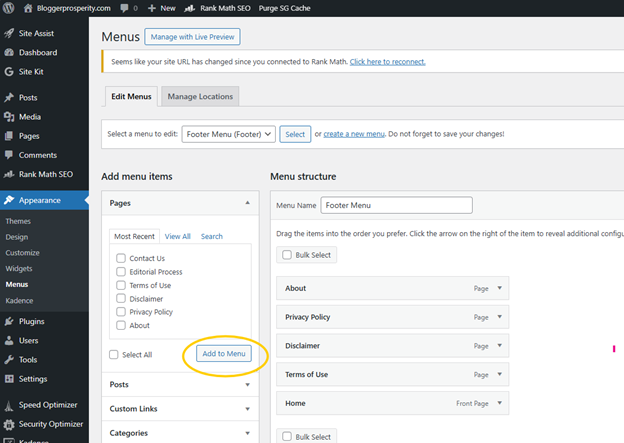
- Go to Appearance → Menus
- Click Create a new menu
- Name it something like Footer Links
- Under Add menu items, select your three pages:
- Disclosure
- Editorial Process
- Privacy Policy
- Click Add to Menu
- Drag to reorder them how you want
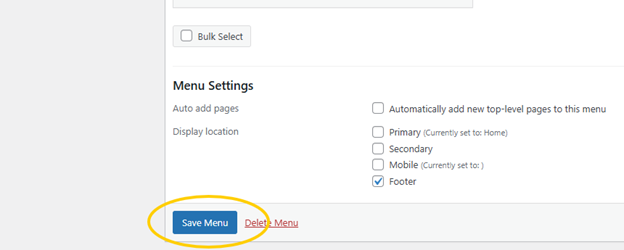
- Click Save Menu
- Now assign the menu to the footer:
- In the Menu Settings section, look for Display location
- Check the box for Footer (wording varies: “Footer Menu”, “Footer Navigation”, “Footer 1”, etc.)
- Save again
If you do not see a Footer display location
That means your footer isn’t set to use a menu in that location, or Kadence is using footer widgets instead. Use Option B below.
Option B: Add them via Kadence Footer Widgets (very common)
Kadence often uses widget areas for the footer.
- Go to Appearance → Widgets
- Look for something like:
- Footer Column 1, Footer Column 2, etc.
- In the column you want, click + and add:
- Navigation Menu widget (then select your “Footer Links” menu you created), or
- Add links manually with a Paragraph / Custom HTML block (not my favorite, but works)
Option C: Add them in Kadence Customizer footer builder
If you’re using the Kadence footer builder:
- Go to Appearance → Customize
- Go to Footer
- Open the Footer Builder
- Add a Navigation element (or a widget element depending on setup)
- Select your Footer Links menu
- Publish
Quick best practice
In the footer, most sites format this as:
Privacy Policy | Disclosure | Editorial Process
Adding pages to your footer is part of the proper blog setup process that ensures your site looks professional from day one.
Most bloggers place their essential legal pages every blogger needs in the footer so they’re accessible on every page of the website.